
Download Magic Design by Canva – AI‑Powered Design Tool for Quick Creations
Introduction – Why Magic Design Stands Out in the Crowded Design Landscape
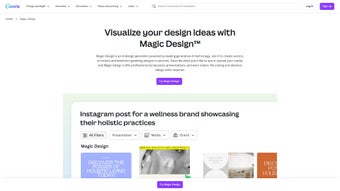
In a world where visual content moves at the speed of a swipe, creators need tools that keep up without sacrificing quality. Magic Design by Canva answers that call with an AI‑driven engine that turns raw media—text, images, or video clips—into polished, ready‑to‑publish designs in seconds. Unlike traditional drag‑and‑drop editors that require a deep dive into templates and countless adjustments, Magic Design leverages Canva’s massive library and a smart recommendation engine to serve up eight automatically generated layouts tailored to the user’s brief. Whether you’re a marketer racing to produce a webinar deck, a teacher preparing a lesson presentation, or a small‑business owner needing a quick promotional video, this web‑based tool promises speed, flexibility, and a professional look without a steep learning curve.
The platform is built on Canva’s existing ecosystem, meaning users benefit from familiar brand assets, a rich set of fonts, icons, and stock media, while the AI layer removes the guesswork. For Pro subscribers, the experience expands further: generated templates become fully editable, resizable, and can be saved directly to a personal brand kit. The result is a seamless bridge between “I need something fast” and “I need it to look great.” Below we dive into the core capabilities, setup steps, system requirements, and the pros and cons that matter most to real‑world users.
Beyond speed, Magic Design places security and privacy at the forefront. All uploads travel over HTTPS, are stored on GDPR‑compliant servers, and remain private unless you deliberately share a link. This combination of rapid AI generation, deep Canva integration, and strong data protection makes Magic Design a trustworthy option for professionals who need to produce high‑impact visuals on a tight schedule.
Overview & Core Features – What Magic Design Actually Does
AI‑Generated Templates in Seconds
At the heart of Magic Design is a generative AI model that analyses the content you upload—whether it’s a block of copy, a logo, or a set of product photos—and instantly produces a curated set of eight design templates. These templates are not static; they adapt to the type of media, the intended format (social post, presentation slide, video storyboard), and the visual tone you select. For example, inputting a short marketing brief for a new coffee line will yield warm, earthy layouts with coffee‑related imagery, while a tech‑startup pitch generates sleek, minimalistic slides with data‑centric placeholders.
Presentation Builder with Automatic Outlines
One of the most praised features is the ability to generate entire presentations from a simple outline. Users type a few bullet points describing each section, and Magic Design drafts a slide deck complete with titles, supporting graphics, and suggested transitions. The AI also recommends slide order based on storytelling best practices, which can be a lifesaver for non‑designers who struggle with flow and hierarchy.
Video Editing Made Simple
Beyond static graphics, Magic Design extends its AI power to video. Upload a series of clips or images, and the tool stitches them together, adds motion effects, and suggests royalty‑free soundtracks that match the video’s mood. The result is a polished short video ready for social media or internal communications. Pro users can fine‑tune timing, replace music, and export in multiple resolutions.
Integration with Canva’s Asset Library
All generated designs pull from Canva’s extensive library of over 75 million photos, illustrations, icons, and fonts. This means you never run out of visual options, and brand consistency is easier to maintain. For teams, shared brand kits ensure that colors, logos, and typography stay on‑brand across every AI‑generated asset.
Feature List
- Eight AI‑curated template options per project.
- Full editability for Pro accounts (resize, recolor, replace elements).
- Automatic presentation outline generation from user‑provided bullet points.
- One‑click video compilation with AI‑suggested soundtracks.
- Access to Canva’s full stock library and brand kit integration.
- Web‑based, no software download required; works in modern browsers.
- Collaboration tools for team members to comment and iterate.
- Export options: PNG, JPG, PDF, MP4, and PPTX.
Getting Started – Installation, Usage Instructions, and System Compatibility
Zero‑Download Installation – All You Need Is a Browser
Magic Design lives entirely in the cloud, which eliminates the traditional installation step. To begin, visit canva.com/magic-design and sign in with your Canva credentials. If you don’t have an account, registration is free and takes under a minute. Once logged in, you’ll see the Magic Design dashboard with a “Create New Project” button.
Step‑by‑Step Workflow
- Choose a Project Type: Select whether you need a social post, presentation, video, or custom size.
- Upload Your Media: Drag‑and‑drop text files, images, or video clips into the upload area. The AI starts processing as soon as the first file is detected.
- Enter a Brief (Optional): Provide a short description of the desired style, target audience, or key messages. This helps the algorithm refine its suggestions.
- Review Generated Templates: Eight options appear on the screen. Click any thumbnail to preview a larger version.
- Customize (Pro Only): For paid users, click “Edit” to open the full Canva editor where you can move elements, change colors, replace images, or add new text boxes.
- Export or Share: Once satisfied, hit “Download” to choose your format, or use “Share” to generate a shareable link or send directly to teammates.
Tips for Faster Results
To get the most accurate AI suggestions, keep your brief concise (1–2 sentences) and use high‑resolution images. The AI also learns from repeated usage, so frequent creators will notice increasingly relevant template suggestions over time.
Compatibility – Which Devices and Operating Systems Are Supported?
Magic Design runs on any modern desktop or mobile browser that supports HTML5, CSS3, and JavaScript. Officially supported platforms include:
- Windows 10 and later (Chrome, Edge, Firefox)
- macOS 11 (Big Sur) and later (Safari, Chrome, Firefox)
- iOS 13+ (Safari, Chrome) on iPhone and iPad
- Android 9+ (Chrome, Firefox)
Because the tool is cloud‑based, performance hinges more on internet speed than hardware. A broadband connection of at least 5 Mbps is recommended for smooth video rendering, while lower speeds may cause longer processing times.
Pros and Cons – A Balanced Look
Pros
- Instant AI‑generated designs cut creation time dramatically.
- Seamless integration with Canva’s massive asset library.
- Presentation outlines and video stitching are fully automated.
- No software download; works directly in the browser.
- Free tier available; Pro unlocks deep customization.
Cons
- Full editability is limited to Pro users; free tier offers only static output.
- AI suggestions may occasionally miss niche branding nuances.
- Performance depends on internet speed; large video projects can be slow on weak connections.
- Advanced typography controls are less granular than the desktop Canva editor.
Frequently Asked Questions (FAQ) and Final Verdict
FAQ – Your Most Common Queries Answered
Is Magic Design completely free to use?
A free tier is available, providing access to AI‑generated templates and basic export options. However, full editability, brand kit integration, and higher‑resolution video exports require a Canva Pro subscription.
Can I use Magic Design on a Chromebook?
Yes. Because Magic Design runs entirely in the browser, any Chromebook that supports Chrome OS 85+ and a modern browser can access the tool without issues.
How secure is my uploaded media?
Canva follows industry‑standard encryption (HTTPS/TLS) for data in transit and stores files on secure, GDPR‑compliant servers. Uploaded assets are private unless you explicitly share a link.
Can I export designs directly to PowerPoint?
Yes. After generating a presentation, you can download it as a PPTX file, which retains most layout elements and can be opened in Microsoft PowerPoint or Google Slides.
Does Magic Design support collaboration with team members?
Collaboration is built‑in. Team members can comment on AI‑generated drafts, suggest edits, and co‑author the final design in real time, provided they have access to the same Canva workspace.
Conclusion – Should You Download Magic Design by Canva?
For anyone who regularly needs visual content but lacks the time—or the design chops—to start from scratch, Magic Design is a game‑changer. Its AI engine delivers a solid starting point in seconds, while the underlying Canva ecosystem ensures that the final product can be polished to professional standards. The free tier is generous enough for occasional use, and the Pro upgrade unlocks the deep customization that power users expect.
If you work on Windows, macOS, iOS, or Android and prefer a cloud‑first workflow, accessing Magic Design today will streamline your creative process, reduce iteration cycles, and let you focus on messaging rather than layout mechanics. Click the button below to launch Magic Design, start a free trial, or upgrade to Pro for unlimited creative freedom.
Pros: Rapid AI templates, seamless Canva library access, presentation & video automation, browser‑only access.
Cons: Full editing locked behind Pro, occasional AI mismatches, dependent on internet speed.



.png)



